
A blank canvas
Choose New canvas → Blank canvas. Add a generator with +, write a prompt, and connect the next step.
GLOBALGPT CANVAS / A CREATIVE WORKSPACE
Ideas in the making.Turn a product photo, a character, or a story idea into connected images and motion. Keep references, prompts, and AI models together on one canvas.
Real projects made with Canvas. Explore the results, then follow the workflows.
See an idea. Follow the process. Make it yours.
01 / SUNLIT PERFUME
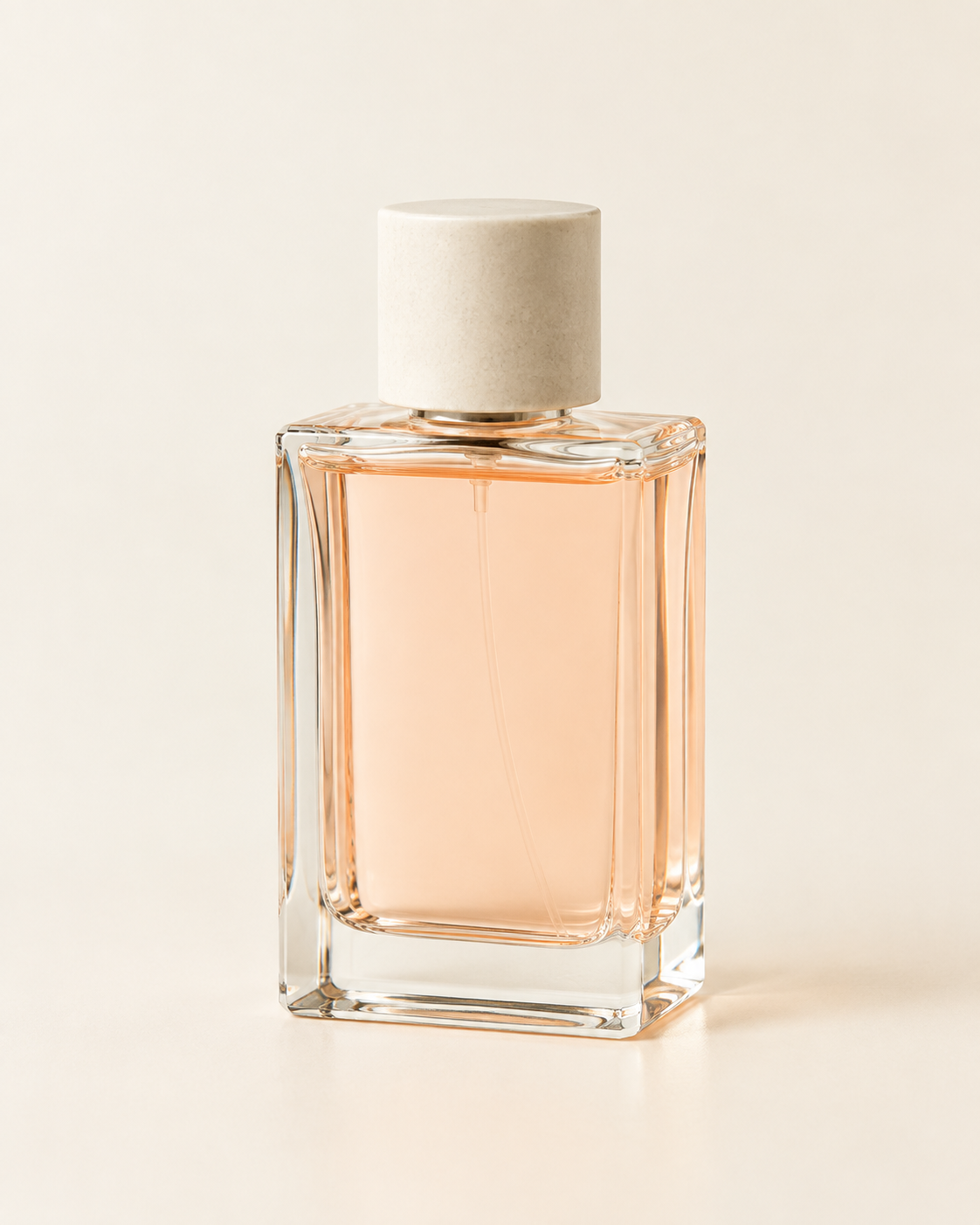
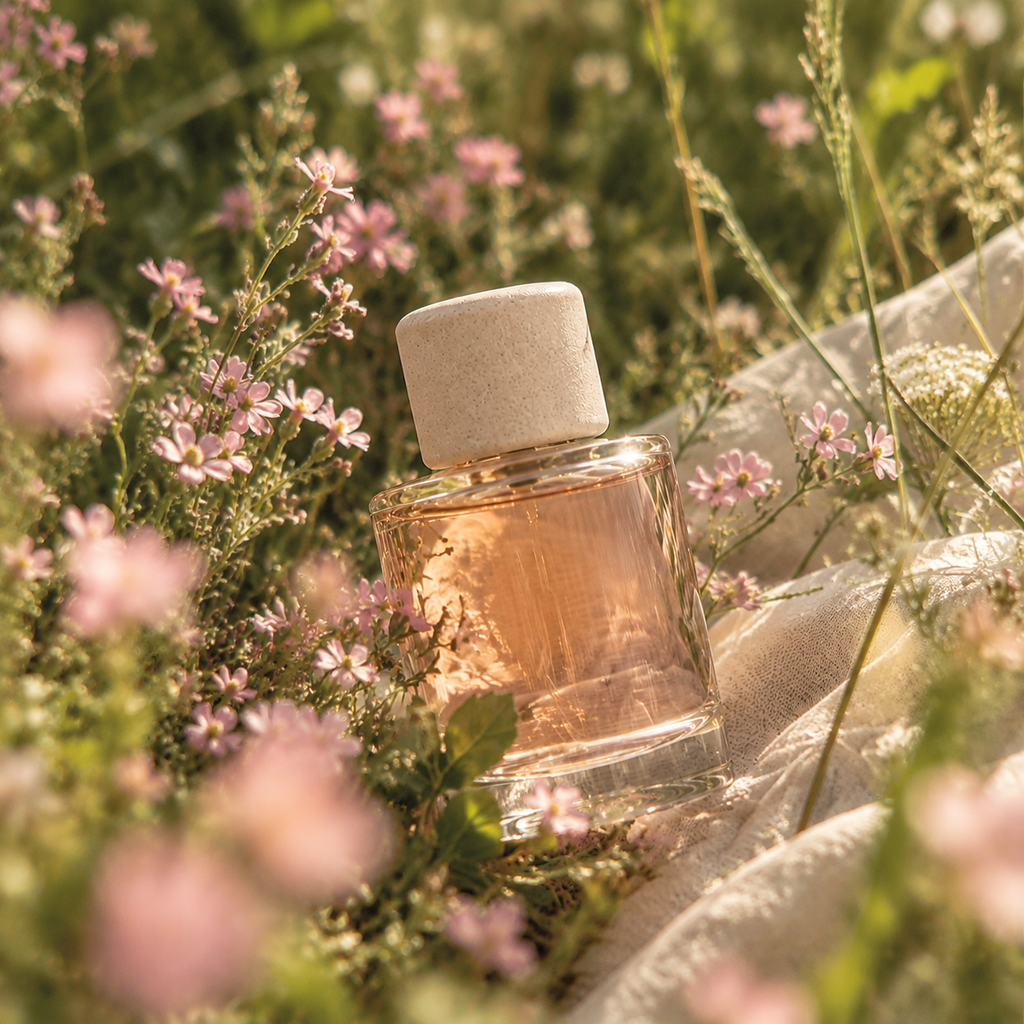
Start with a simple perfume photo. Build a garden around it, then let the flowers move and the camera find the bottle. Keep the product reference connected along the way.
MAKE IT IN THREE STEPS
Add the product photo to a blank canvas, or start from Product launch kit.
Connect the photo as a reference. Describe the scene, then generate and review.
Add a video card or use Animate. Connect compatible references, describe the movement, then run it.
Check the model, settings, and credit estimate before running.
Use the perfume photo as the product reference. Preserve its clear glass bottle, pale apricot liquid, and ivory cap. Place it among pink wildflowers in a sunlit garden, with shallow depth of field and warm afternoon light. No text or logo.
02 / CLOUD BUREAU
A weather office floats above the clouds. Build its rules, rooms, and tiny weather parcels into a shot list, images, and an individual motion clip.
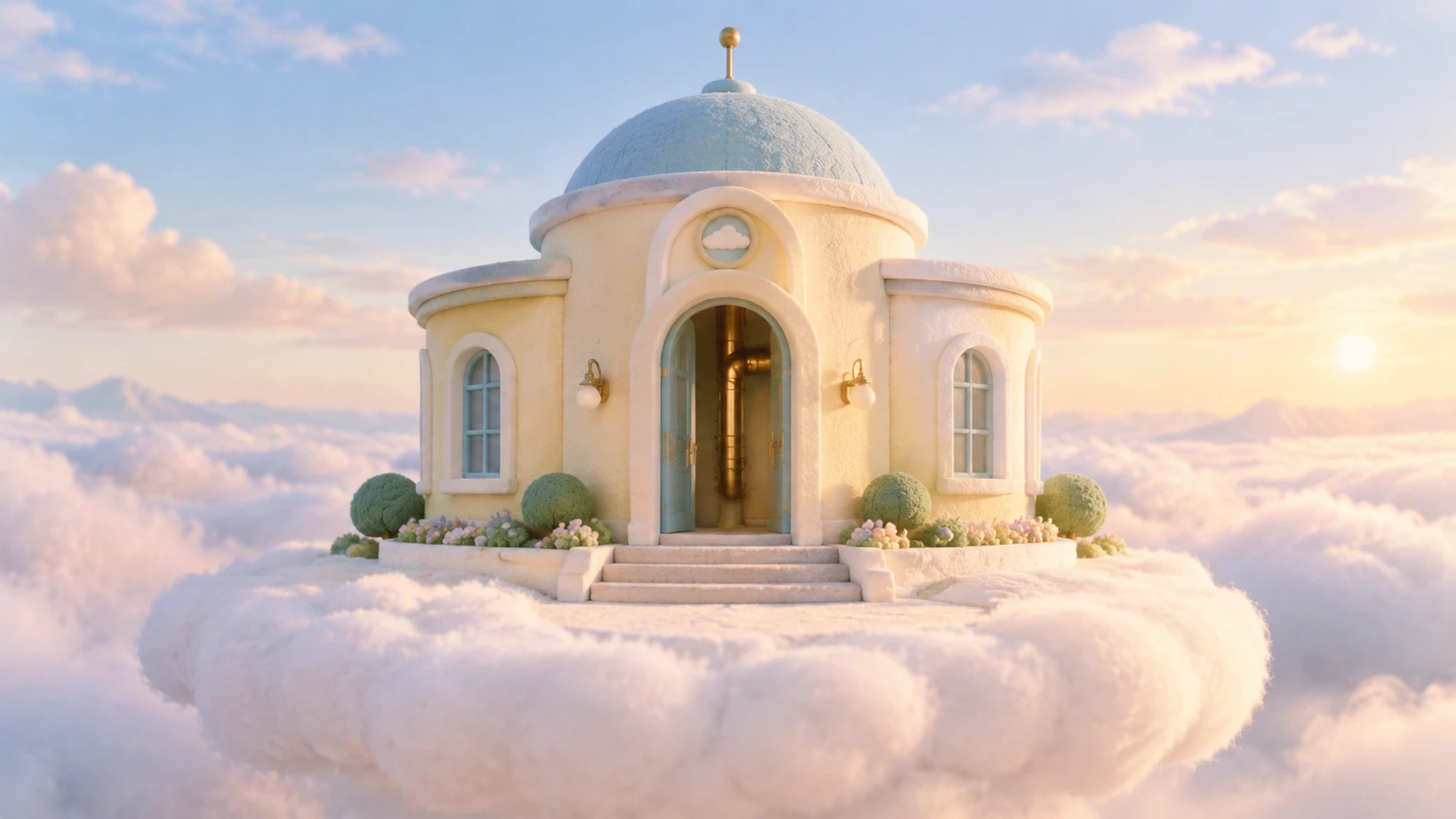
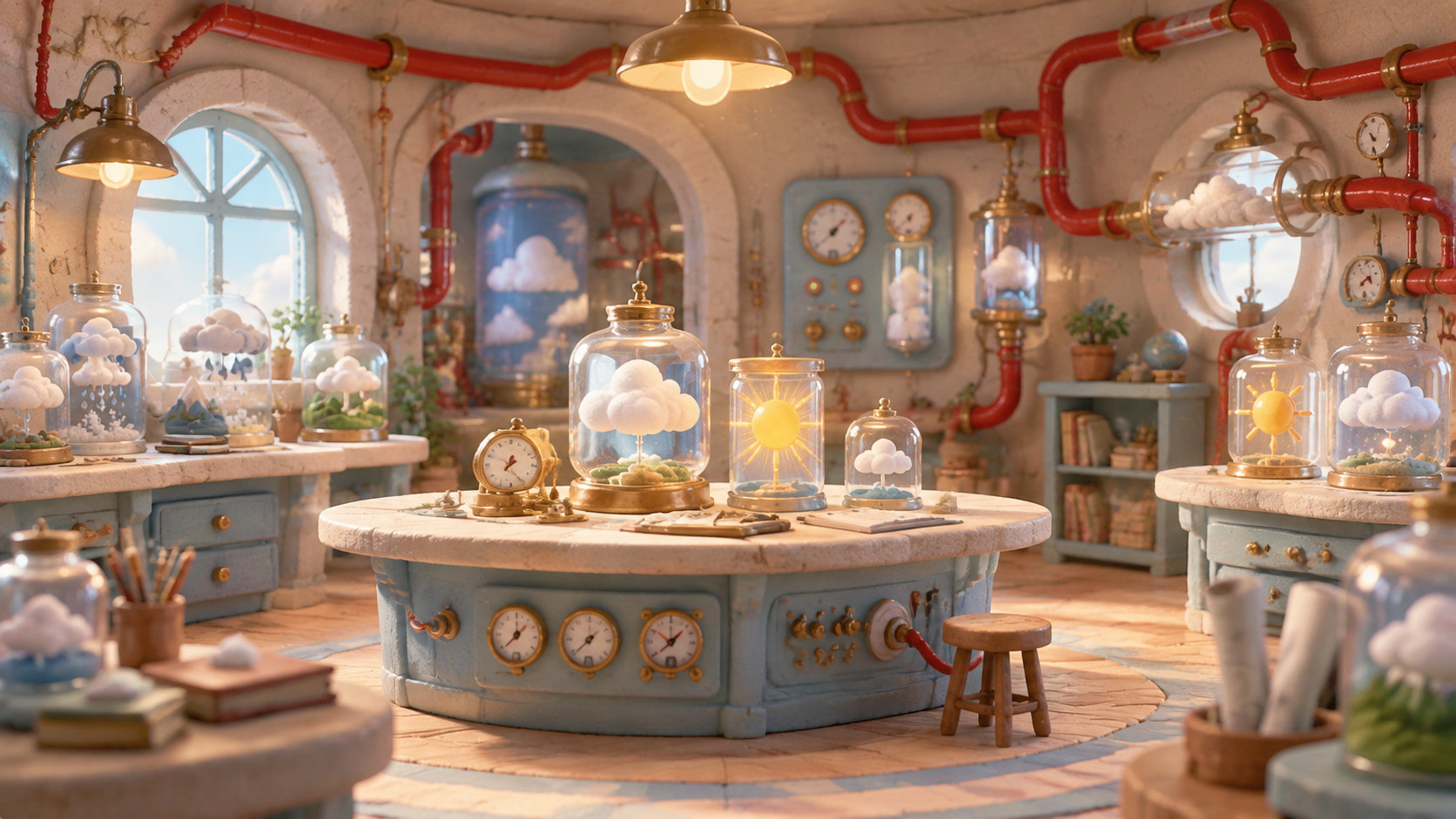
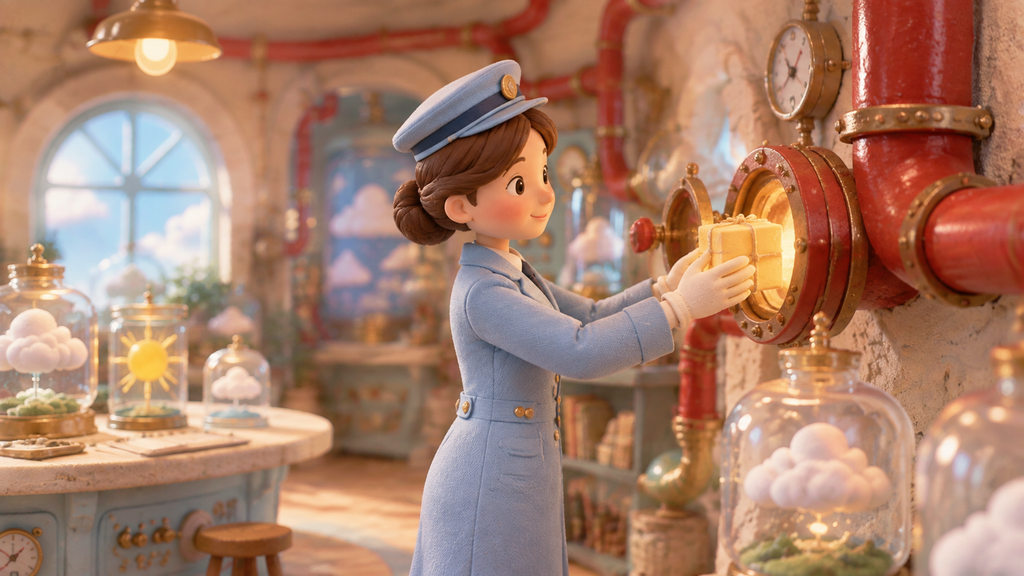
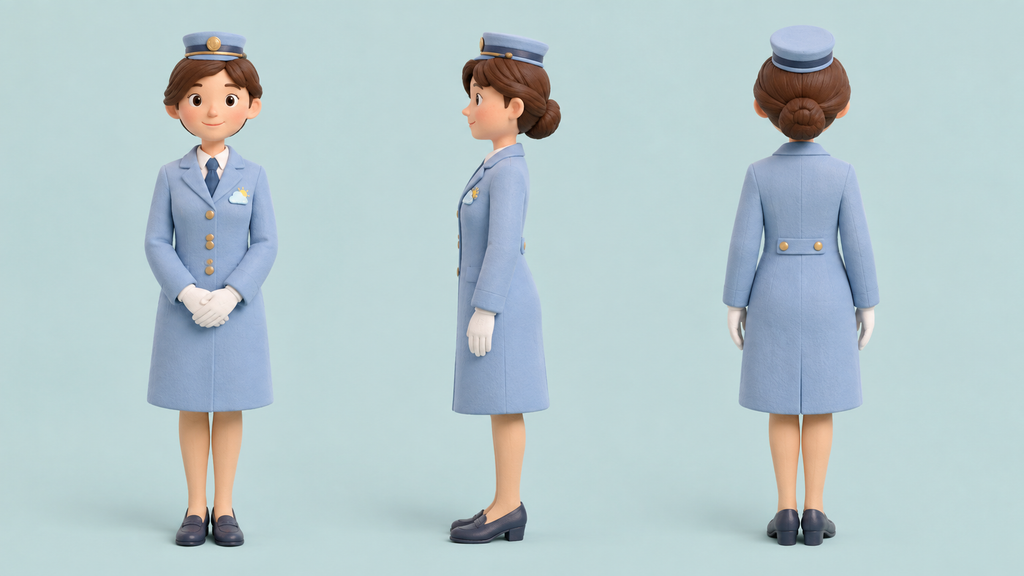
Use the character sheet and workshop as references for the next scene and motion clip.
MAKE IT IN THREE STEPS
Ask Agent to build a storyboard from a short story and a visual direction.
Check the shot list, framing, and connected steps before generating images.
Use the departure scene, character sheet, and workshop as compatible video references. Describe the parcel’s journey, then generate a clip.
Canvas creates scene assets and clips. Assemble a finished story in your editing tool.
The Cloud Bureau manufactures weather above the clouds. Plan three shots with pastel architecture, brass machinery, tiny weather parcels, and a whimsical storybook mood.
03 / NEW ROMANTIC
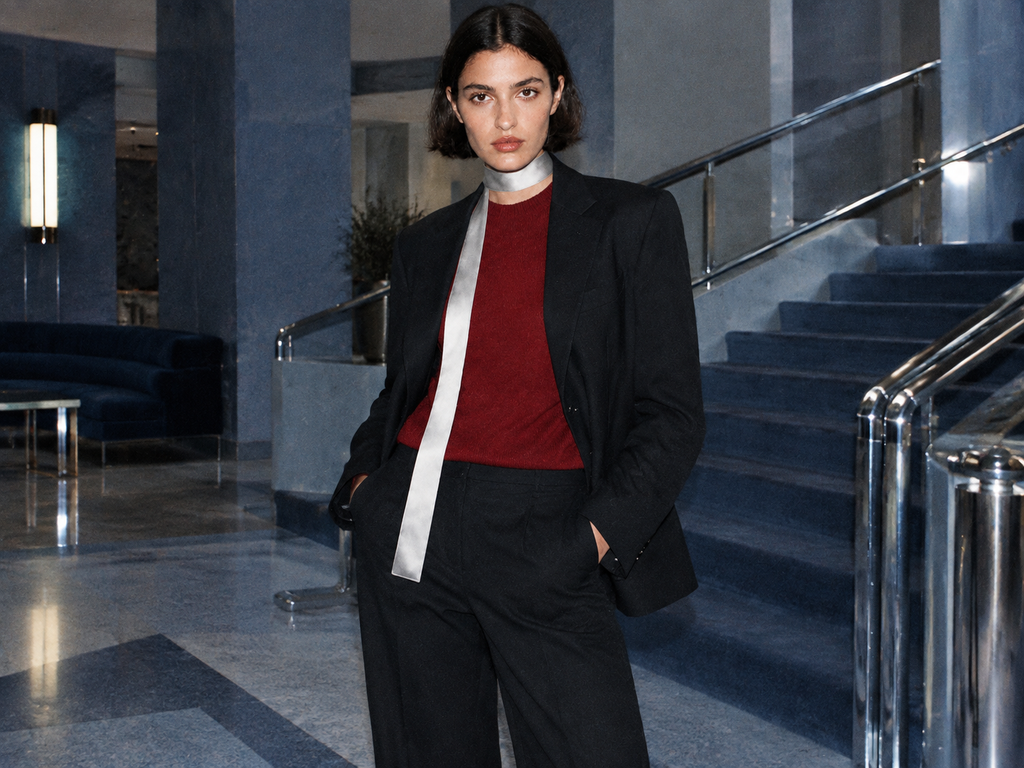
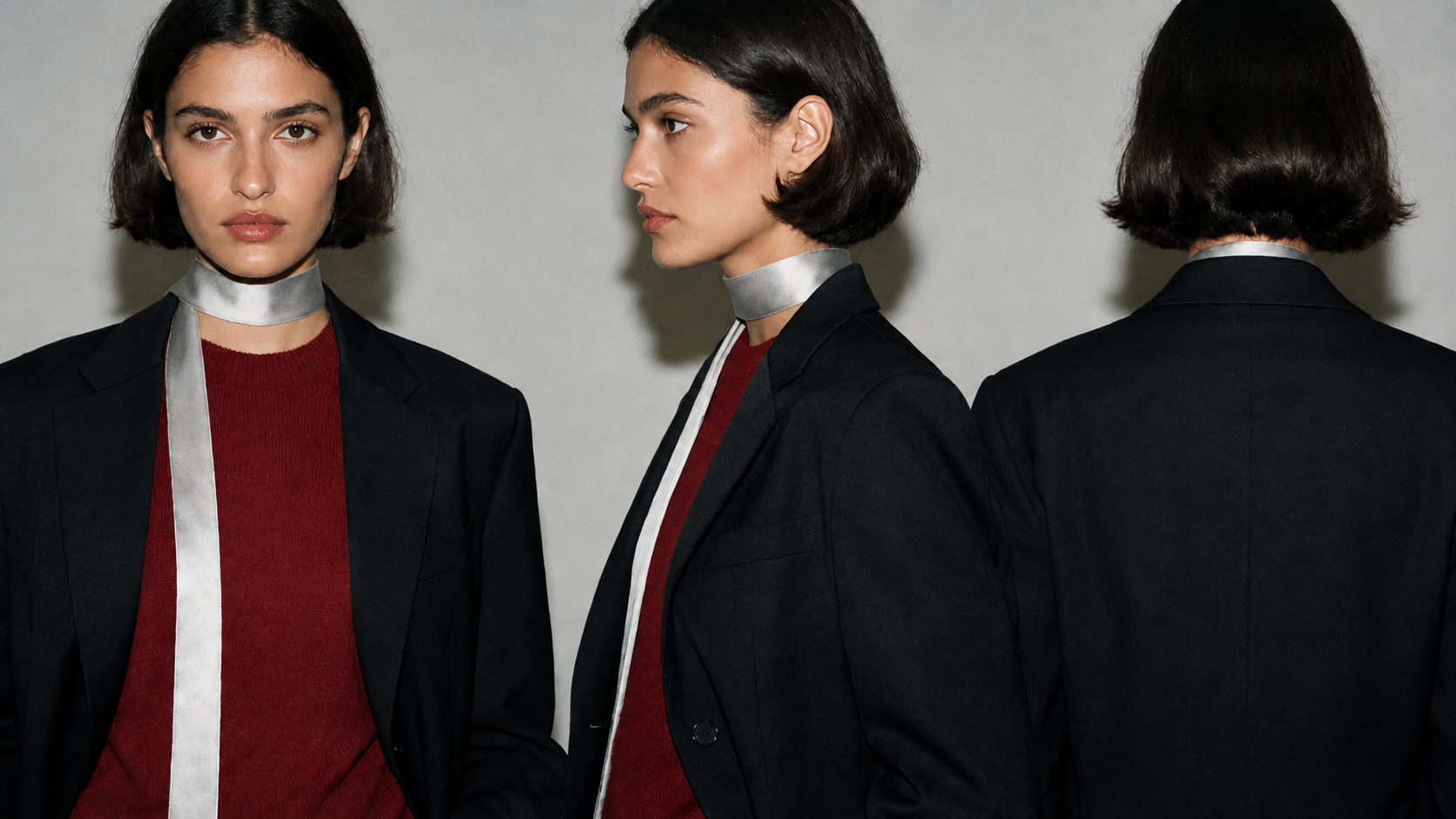
Build one adult fashion muse, place them in a modernist interior, and create a magazine-like motion moment. Use references to guide the look across steps.
MAKE IT IN THREE STEPS
Start with Character IP pack, or upload an adult fashion reference you already have.
Generate a character sheet and a scene. Check the defining features.
Use a favorite scene for video, or select the character and try /character-shots.
Review each output for appearance and style consistency.
Use the adult fashion muse as the reference: short dark bob, black tailored jacket, silver scarf, and deep red knit top. Place the model in a blue-gray modernist hotel with chrome rails and geometric stairs. Direct flash, restrained color, subtle magazine grain.
GET STARTED
Choose New canvas → Blank canvas. Add a generator with +, write a prompt, and connect the next step.
Choose From template for a connected starting point. Add your inputs and adapt the steps.
Open Agent at the top right. Describe the workflow, then review the steps and model choices.
Start from a blank canvas. Create an empty perfume-photo input, a garden image node, and a motion node. Connect the photo to the image reference. Set the image model to GPT Image 2.5, 3:4. Use Seedance 2.5, 720p, 10 seconds, 9:16, audio off for video. Connect the product and garden images to video reference_images; leave image, image_tail, reference_videos, and reference_audios empty. Image prompt: preserve the bottle and place it among pink wildflowers in warm garden light. Motion prompt: slowly reveal the bottle through moving flowers, then hold the final close-up. Prepare nodes, prompts, parameters, and connections only. Do not upload, run, or generate.
Start from a blank canvas. Build a Cloud Bureau storyboard with a clerk reference and three image nodes: exterior, weather workshop, and sunshine parcel departure. Use GPT Image 2.5, 16:9. Connect the clerk to the workshop and departure; connect exterior to workshop, and workshop to departure. Add a Seedance 2.5 video node, 720p, 10 seconds, 16:9, audio off. Connect departure, clerk, and workshop to reference_images; leave image, image_tail, reference_videos, and reference_audios empty. Pre-fill prompts for a pastel miniature weather office, the same clerk, and red pneumatic tubes. Motion: establish for 0–2 seconds, send the parcel through the tube for 2–6, follow for 6–8, and hold for 8–10. Prepare only; do not run or generate.
Start from a blank canvas. Create an adult fashion muse turnaround and a modernist hotel scene using GPT Image 2.5, at 16:9 and 4:3 respectively. Connect turnaround to scene reference. Pre-fill both prompts for the same short dark bob, black jacket, silver scarf, and deep red top; use a blue-gray hotel, direct flash, and magazine grain. Add Seedance 2.5, 720p, 10 seconds, 16:9, audio off. Connect both images to video reference_images; leave image, image_tail, reference_videos, and reference_audios empty. Motion prompt: establish the hotel, slowly turn toward the camera, then hold the gaze. Prepare only; do not run or generate.
BEFORE YOU BEGIN
Connect text, images, video, and audio in a visual workflow. Product imagery, character references, storyboards, campaign assets, and voice-over material are useful starting points. The templates and models available in Canvas determine the supported steps.
Yes. Use Upload or your available assets, then connect them to compatible generation cards. An existing image can guide an image variation or become a video reference. Supported inputs depend on the model.
No coding is required for these workflows. Add and connect cards visually, start from a template, or ask Agent to help set up the steps. You can review and edit the prompts and model choices on the canvas.
Choose an available model on each generation card. Settings and supported inputs vary by model. Check the current credit estimate before you run a step; Agent planning may also use credits.
You can download individual generated images, video clips, and audio results. Combine separate clips, voice-over, and music in your editing tool when you need a finished piece. Share creates a read-only canvas link; review your prompts and assets before sharing it.
Yes. Connect compatible product, character, scene, image, video, or audio references to the relevant Canvas cards. The available inputs depend on the model and card type.
One canvas. Your ideas, connected.
Start with Canvas
04 / SIGNAL FM
One signal.
Many ways to appear.
Build a visual system for a fictional late-night radio event, with each format connected to the same creative brief.
Build a visual direction that travels.
04 / CREATIVE PROCESSMAKE IT IN THREE STEPS
Choose the campaign template.
Open Social campaign: copy + 3 formats from the template menu.
Set a shared creative direction.
Add the subject, audience, tone, and visual style to the brief.
Review each format.
Generate and check the copy and images. Refine the composition, then download.
Publish the finished assets through your usual social tools.
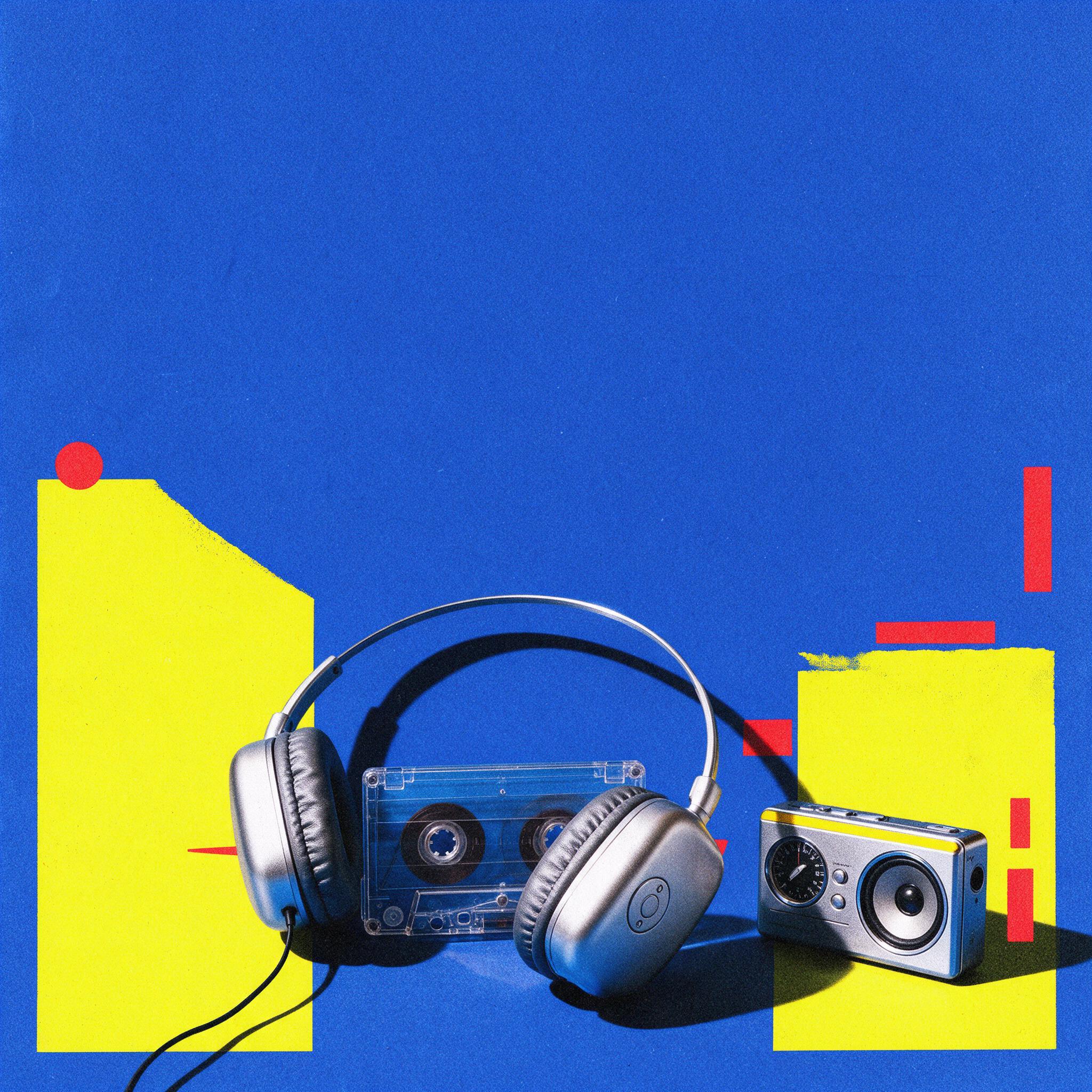
Create a visual system for Signal FM, a fictional late-night radio event. Use cobalt blue, acid yellow, red accents, silver headphones, a transparent cassette, and a radio. Build distinct square, portrait, and landscape compositions with paper grain and room for campaign copy.