

Start with Your Own Photo
Give the AI ID photo generator a reference image instead of relying on a description. Ask it to preserve your features, then compare the result with the original before using it.
Prompt Guide
Model
Reference Image
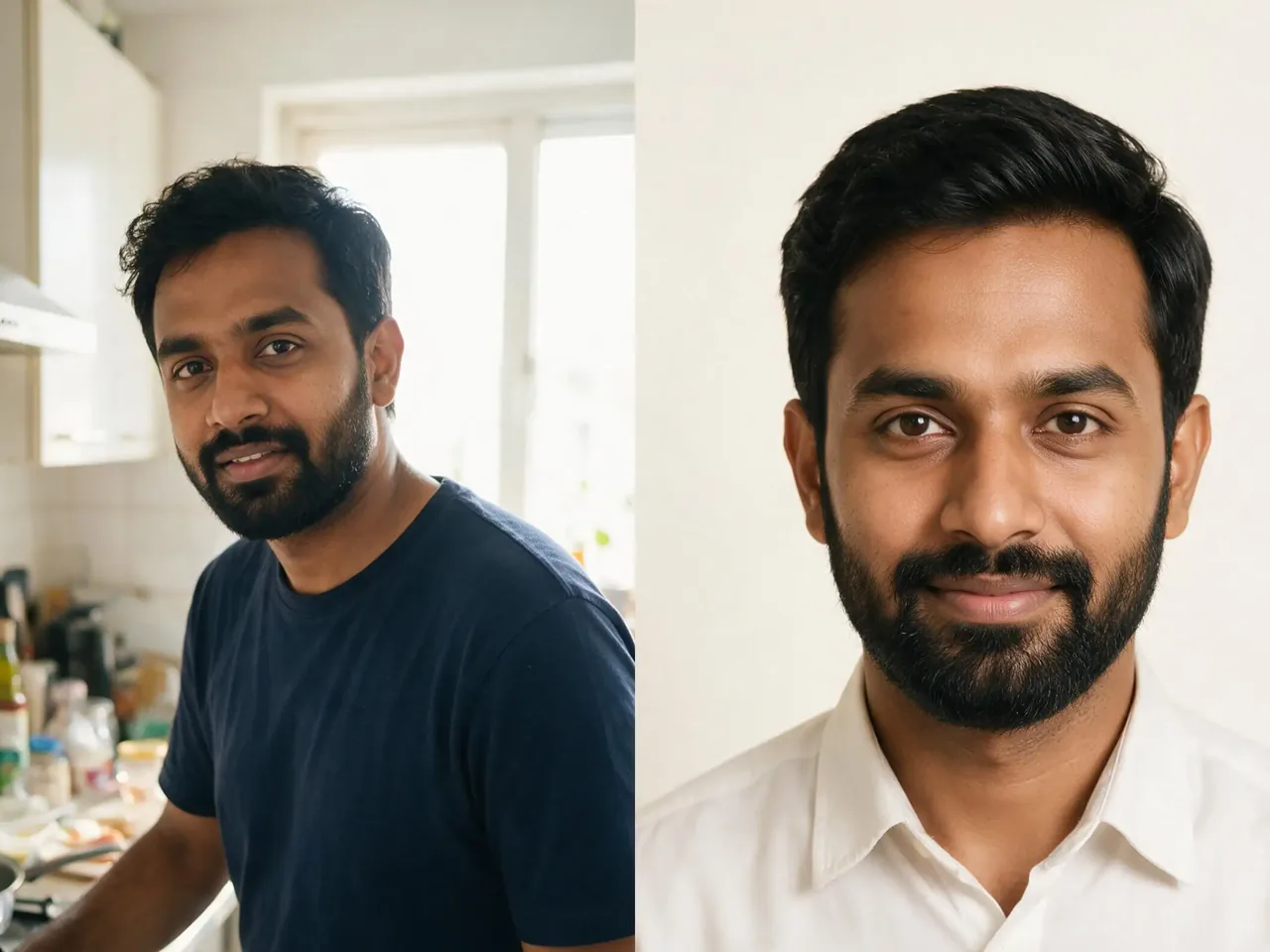
Give your everyday photo a simple background and a more polished frame. Upload a selfie, adapt a ready-made prompt and guide the look without starting from scratch. For passport or visa submissions, check the issuing authority's photo and AI-editing rules first.
Use a recent, front-facing photo with your full face visible and even lighting. Add it under Reference Image. Start with an accurate photo of you; a text-only description cannot reproduce your identity.
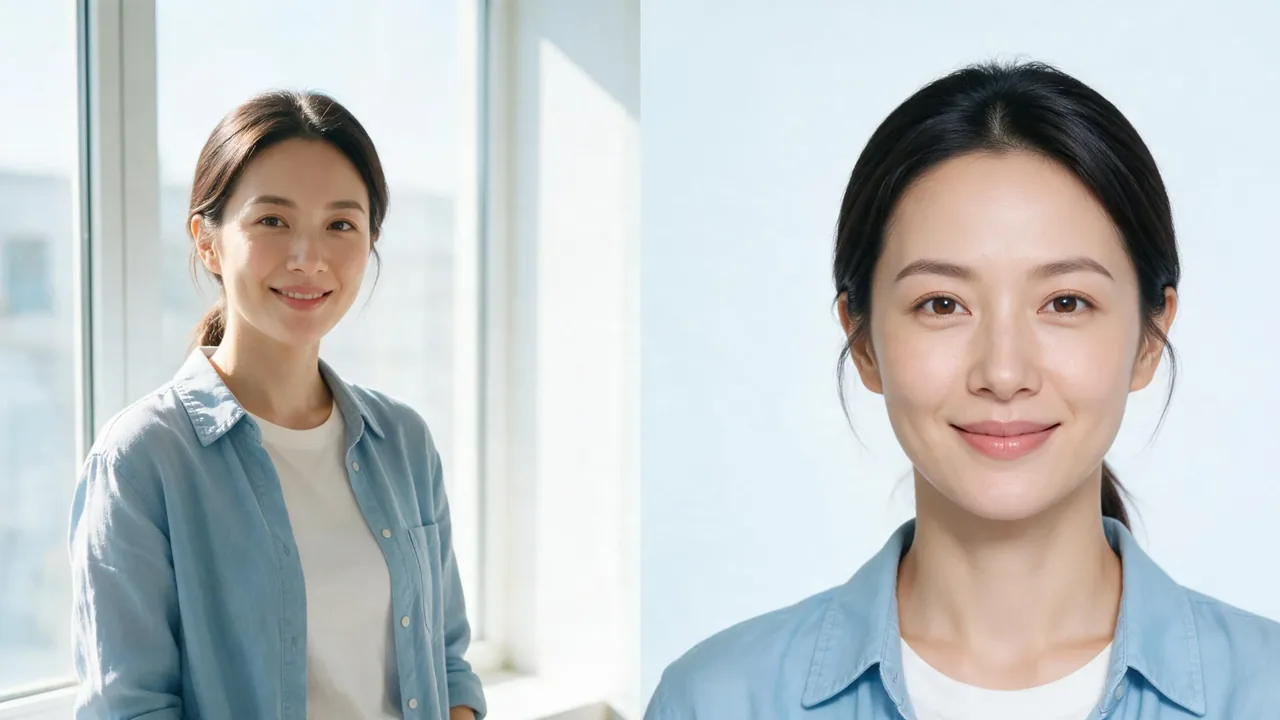
Choose a preset, then request a white, light-gray or other plain background. Select an aspect ratio and ask to preserve your facial features and skin texture. Ratios control image shape, not official print dimensions.
Generate, then compare the result with your original. Check your face, hair edges, lighting and crop before downloading. For a school or workplace ID, confirm its editing policy; for travel documents, follow the issuing authority's rules.
Adapt these prompts with your own reference photo. The examples show portrait styles, not proof of passport or visa acceptance; results will vary.
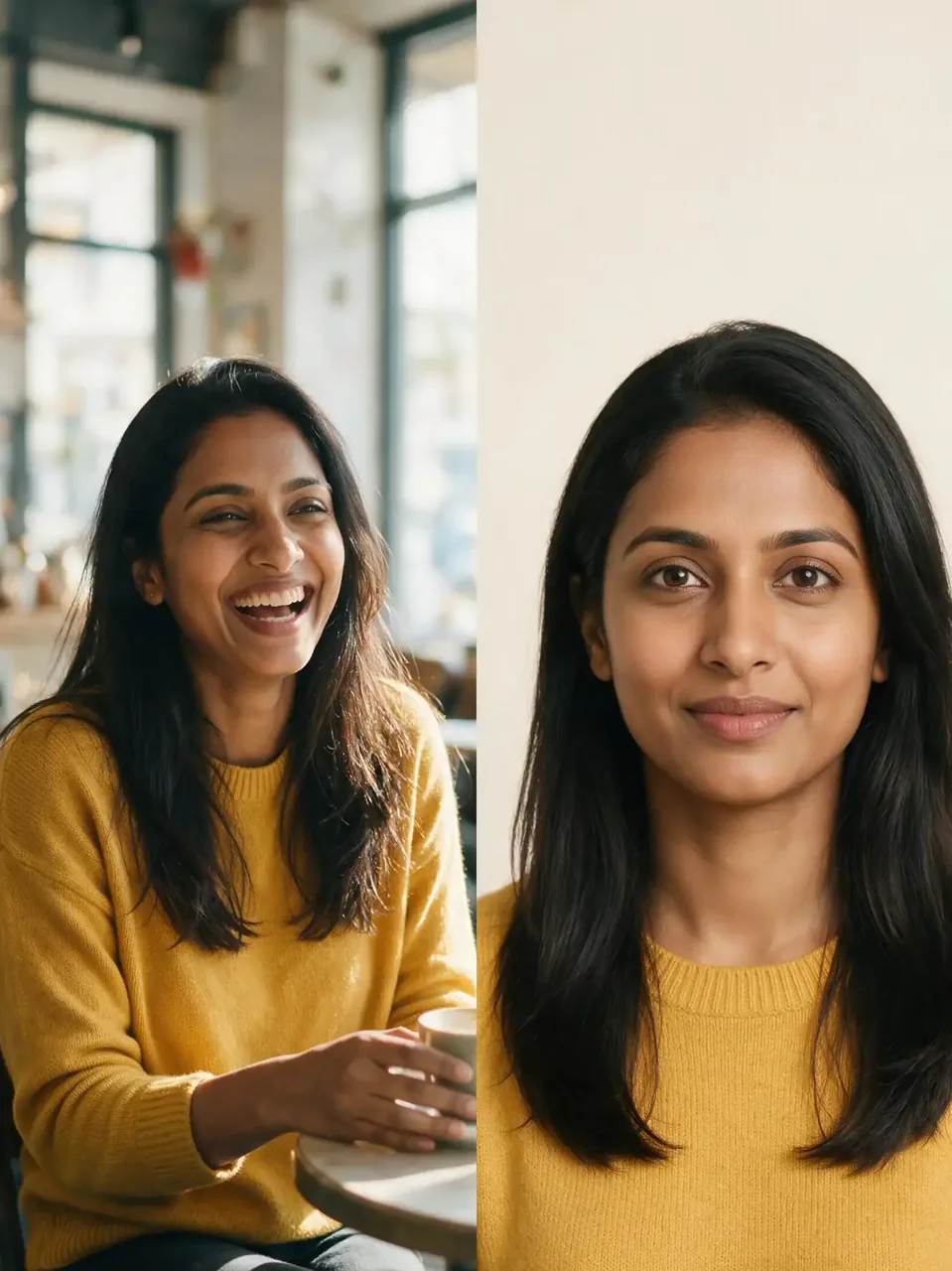 Everyday Photos
Create a clean ID-style portrait from my uploaded cafe photo. Preserve the same face, skin tone, hairstyle and natural texture. Replace the cafe background with plain white. Use a centered, front-facing head-and-shoulders composition, neutral expression and even lighting. No beauty filter, text or border.
Create My ID Portrait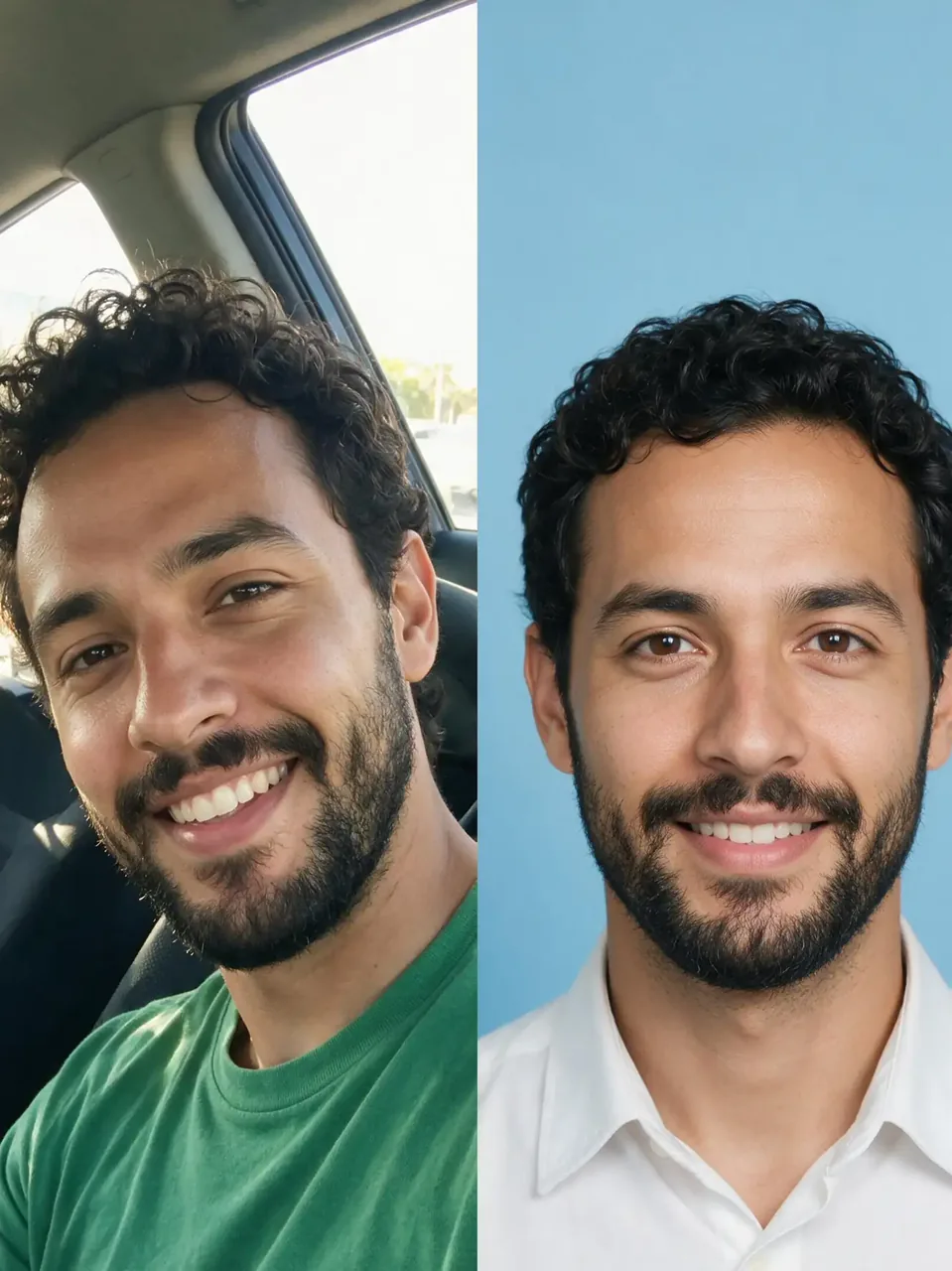 Selfies
Use my uploaded car selfie to create a neutral ID-style headshot. Keep the person's facial proportions, skin tone, hair and clothing. Replace the car interior with a plain light-gray background and request balanced lighting. Frame the full head and shoulders. No face reshaping, text or border.
Create My ID Portrait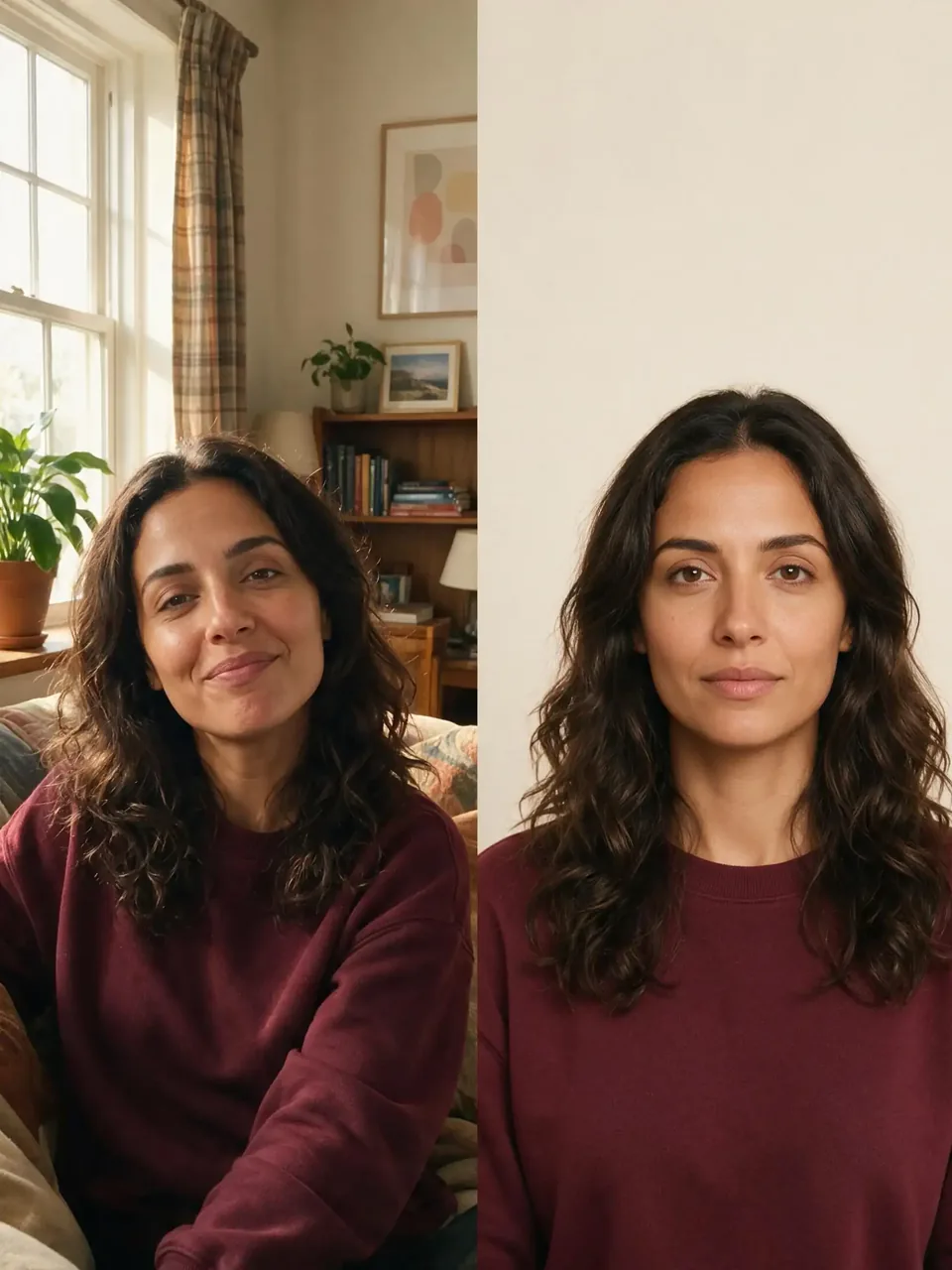 Student Portraits
Create a simple student portrait from my uploaded reference photo. Preserve the same face, hairstyle, skin tone and natural texture. Use a plain background in the color I specify, soft frontal light and a centered head-and-shoulders crop. Keep the original clothing. No skin smoothing, text or frame.
Create My ID Portrait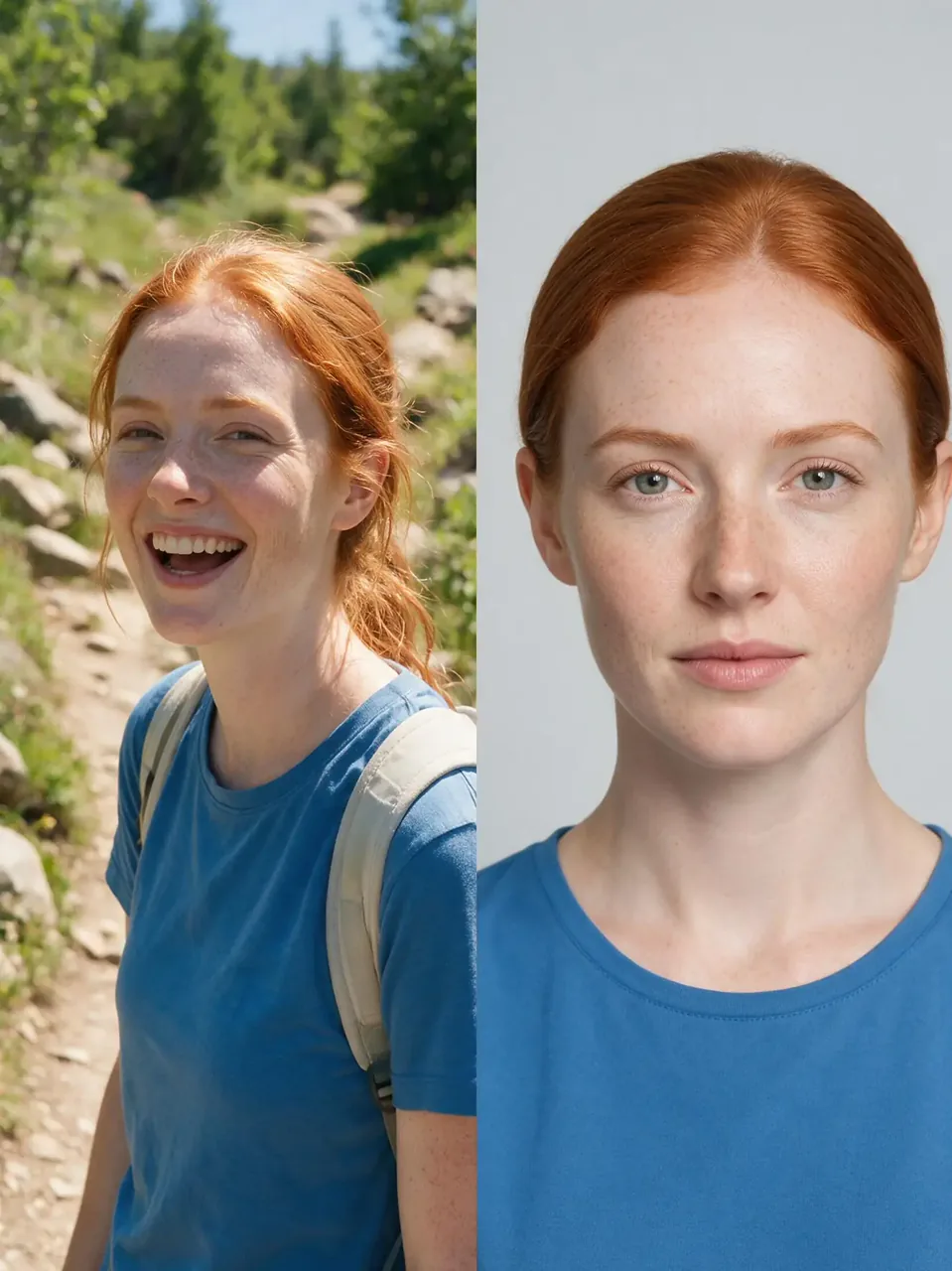 Outdoor Photos
Turn my uploaded hiking photo into a clean ID-style portrait. Preserve the person's face, skin tone, hair and clothing. Replace the outdoor scenery with plain white and request even lighting without harsh shadows. Keep the full head visible with space above the hair. No face reshaping or added text.
Create My ID Portrait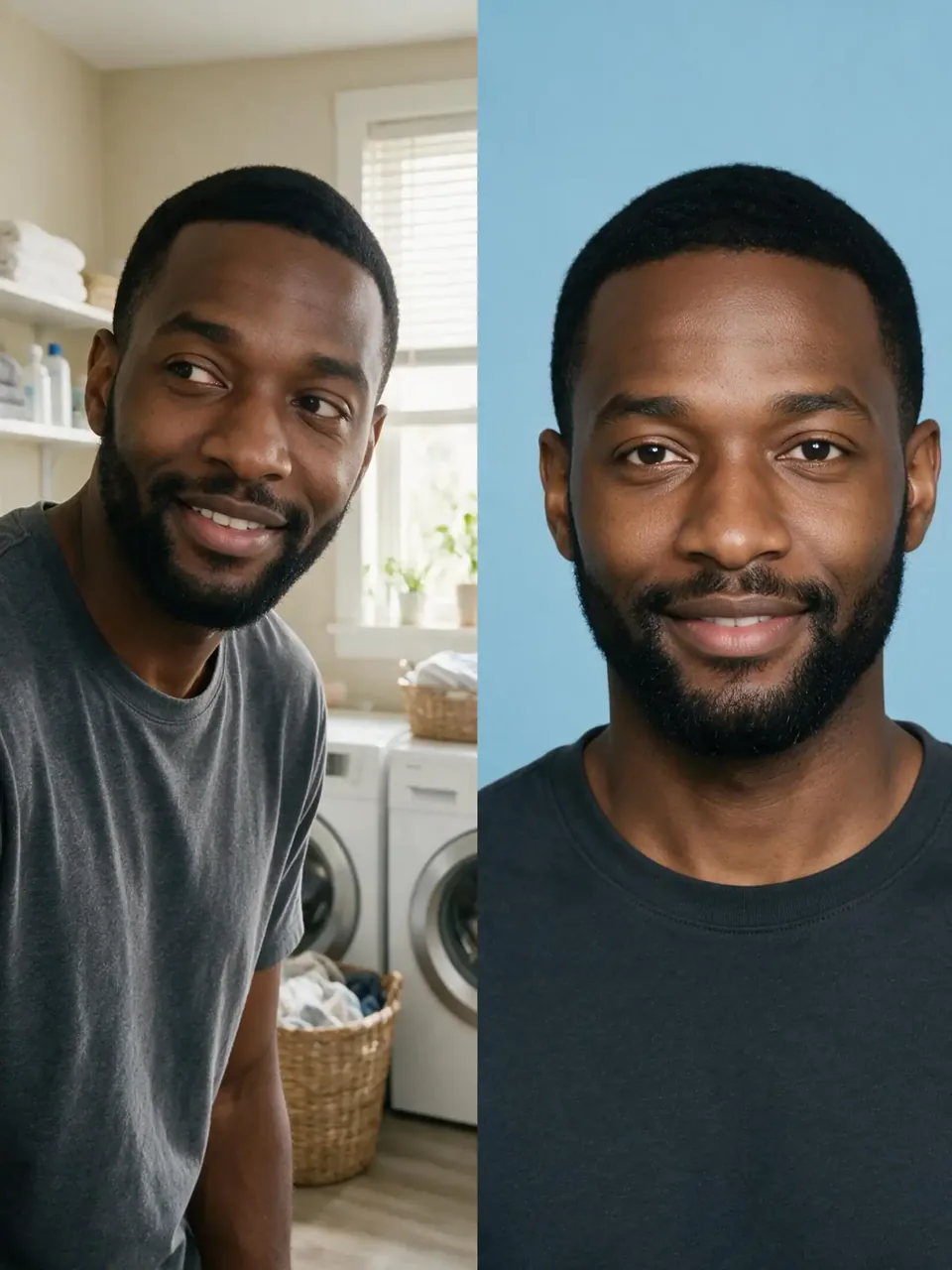 Everyday Photos
Use my uploaded indoor snapshot as the reference for an ID-style headshot. Replace the room background with a plain neutral color. Keep the same facial features, hair, skin tone and clothing. Center the head and shoulders and request soft, even lighting. No glamour retouching, text or border.
Create My ID PortraitGive the AI ID photo generator a reference image instead of relying on a description. Ask it to preserve your features, then compare the result with the original before using it.
Request a plain white, gray or custom background in your prompt. Describe the lighting and crop together so you can guide the whole portrait, from the hairline to the shoulders.
Choose a preset for an indoor photo, outdoor portrait, selfie or travel snapshot. Each gives you specific directions for the background, framing and natural facial detail that you can adjust.
Illustrative feedback for common use cases, not verified customer reviews.
For a staff profile, I would start with a recent selfie and request a plain background while keeping my face and clothing recognizable.
For a student portrait, I would check the school's photo policy first, then use its background and framing instructions in my prompt.
For a personal profile, I would compare a white background with light gray and choose the portrait that looks most like my original photo.
You can start with the Nano Banana 2 free trial shown in the tool. The current setup includes one trial generation; availability depends on your account. Check the allowance before generating. Additional generations and other models may require credits or a paid plan.
Acceptance is not guaranteed. Passport and visa authorities may restrict AI-generated or digitally altered photos, even when the background and crop look correct. Check the current rules for your document and destination before editing. Use an original, unaltered photo or a professional photo service when required.
This tool offers aspect ratios: 1:1, 3:4, 4:3, 9:16 and 16:9. It does not provide dedicated 2 x 2 inch or 35 x 45 mm presets. An aspect ratio alone does not set print size, resolution or head dimensions; check those separately in a suitable photo editor.
Upload a recent, sharp, front-facing photo with even lighting and no beauty filter. Ask the AI ID photo generator to preserve your facial proportions, skin tone and natural texture. Generated edits can still change details, so compare the output closely with your original. Text-only generation creates an invented person.
Upload your photo and specify the color in your prompt, for example: 'Use a plain white background, even lighting and a centered head-and-shoulders crop; preserve my facial features.' Review the hair edges and shadows after generation. For any ID submission, use the background color and editing rules required by the recipient.