

Start with the subject
Tell the model which object or person to keep, including small handles, hair and transparent parts that need attention.
Prompt Guide
Model
Reference Image
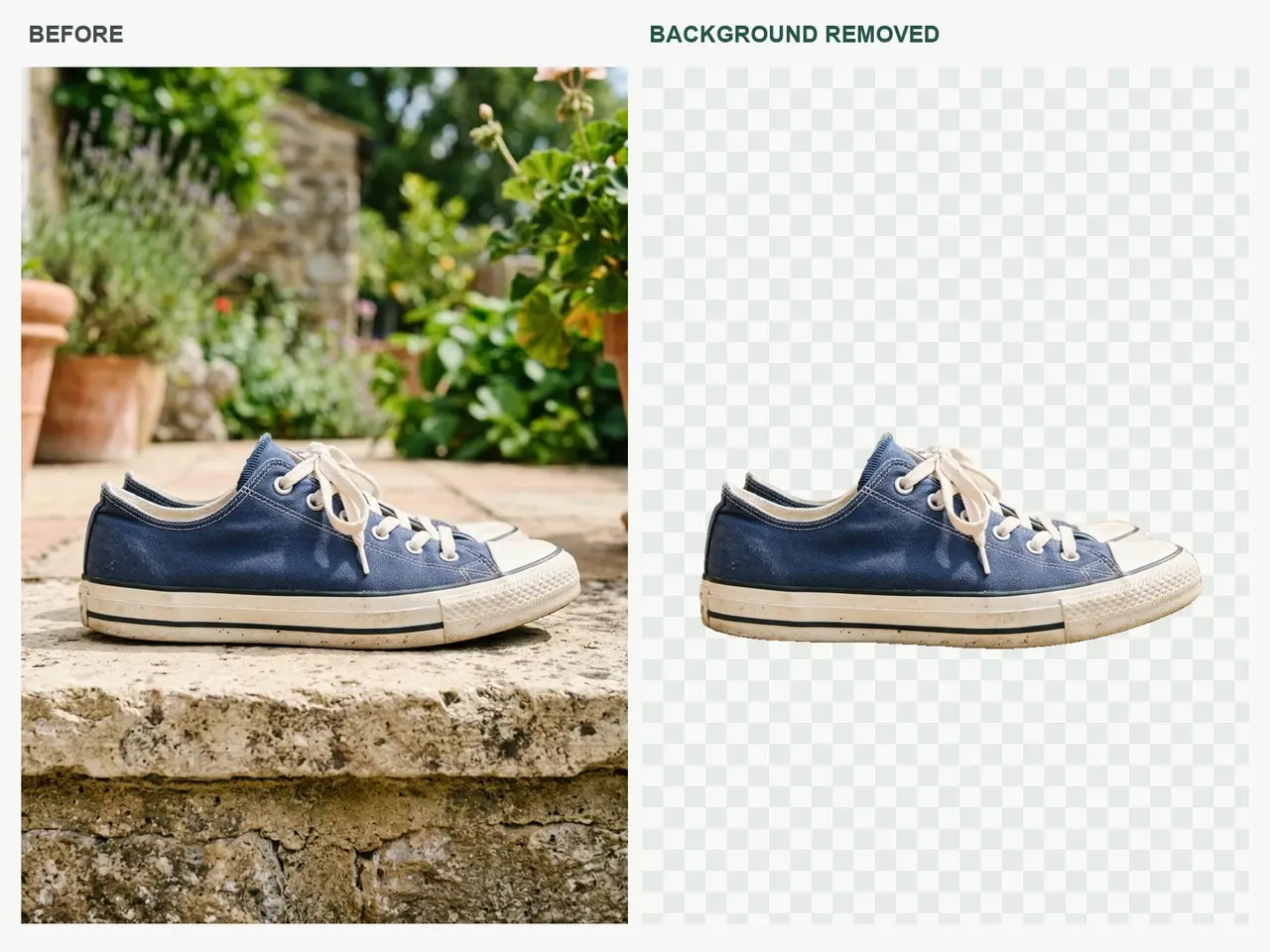
Describe the background you want to remove or replace, then use a reference-capable image model to explore a cleaner product photo or portrait. Keep the subject, simplify the scene, and review fine edges before using the result.
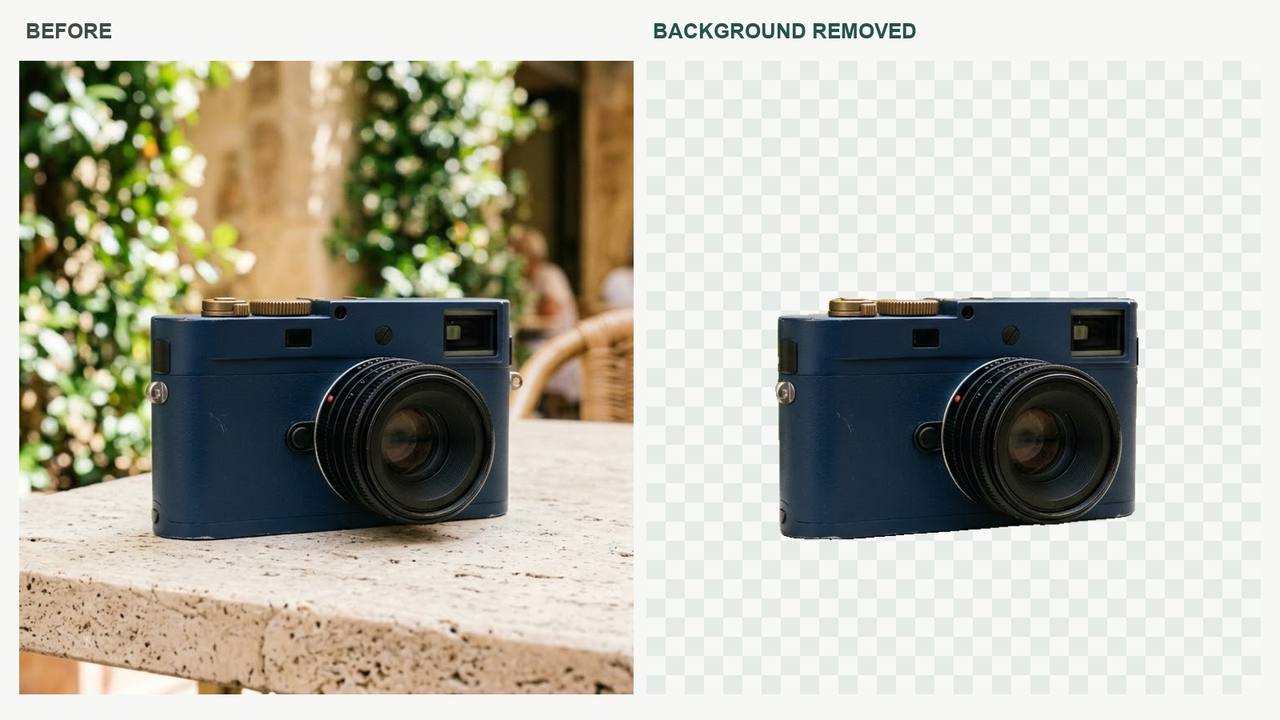
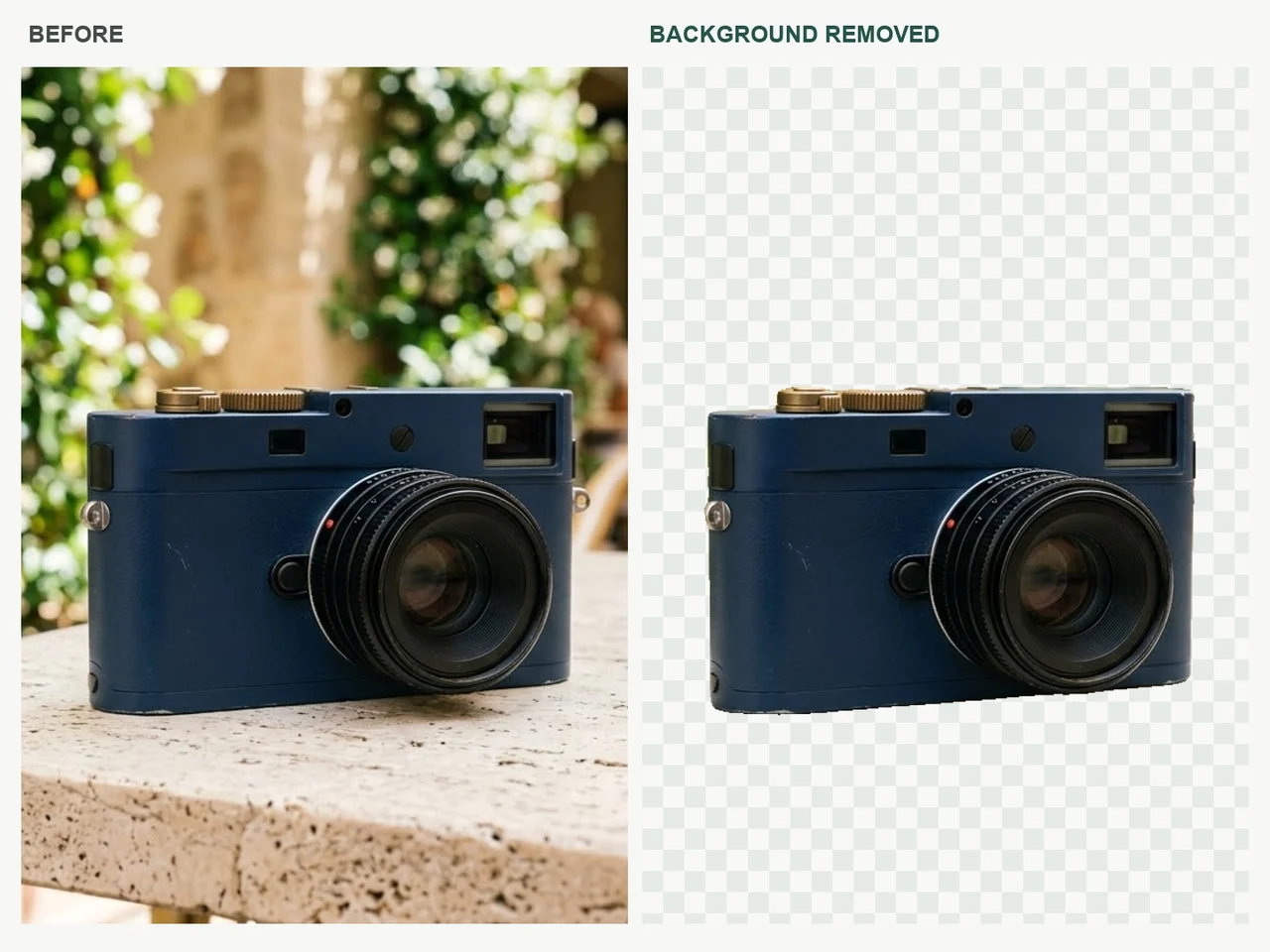
Illustrative same-photo comparisons: the subject stays in place while the background is removed. Checkerboards show transparent regions in these examples; check export support for your chosen model.
 Products
Remove the background from my reference image. Preserve the exact subject, pose, colors, fine hair and openings. Do not redraw the subject or add new objects. Use a transparent background if the chosen model supports it; otherwise provide a clean plain background and inspect the edges.
Use This Direction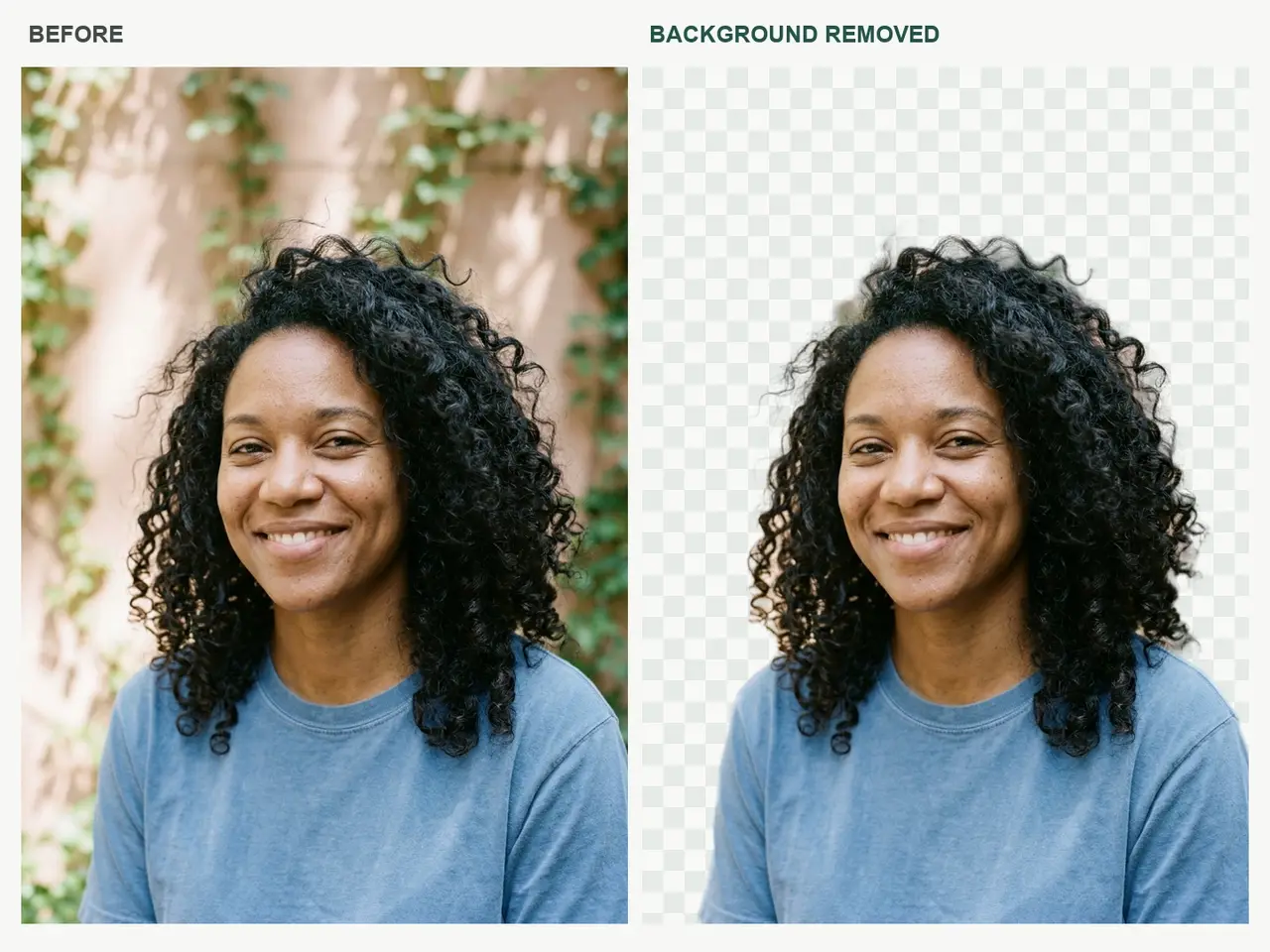 Portraits
Remove the background from my reference image. Preserve the exact subject, pose, colors, fine hair and openings. Do not redraw the subject or add new objects. Use a transparent background if the chosen model supports it; otherwise provide a clean plain background and inspect the edges.
Use This Direction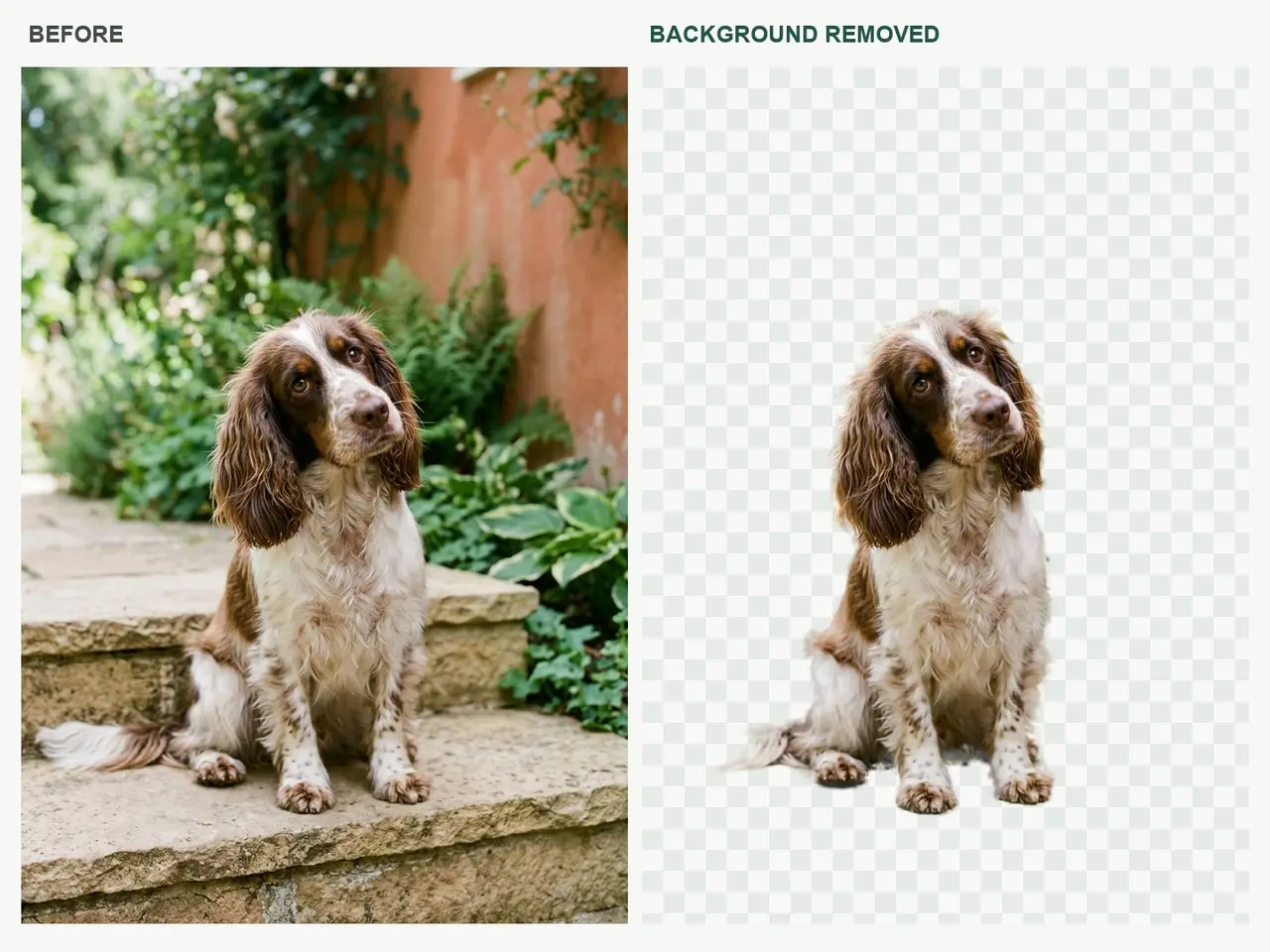 Pets
PetsRemove the background from my reference image. Preserve the exact subject, pose, colors, fine hair and openings. Do not redraw the subject or add new objects. Use a transparent background if the chosen model supports it; otherwise provide a clean plain background and inspect the edges.
Use This Direction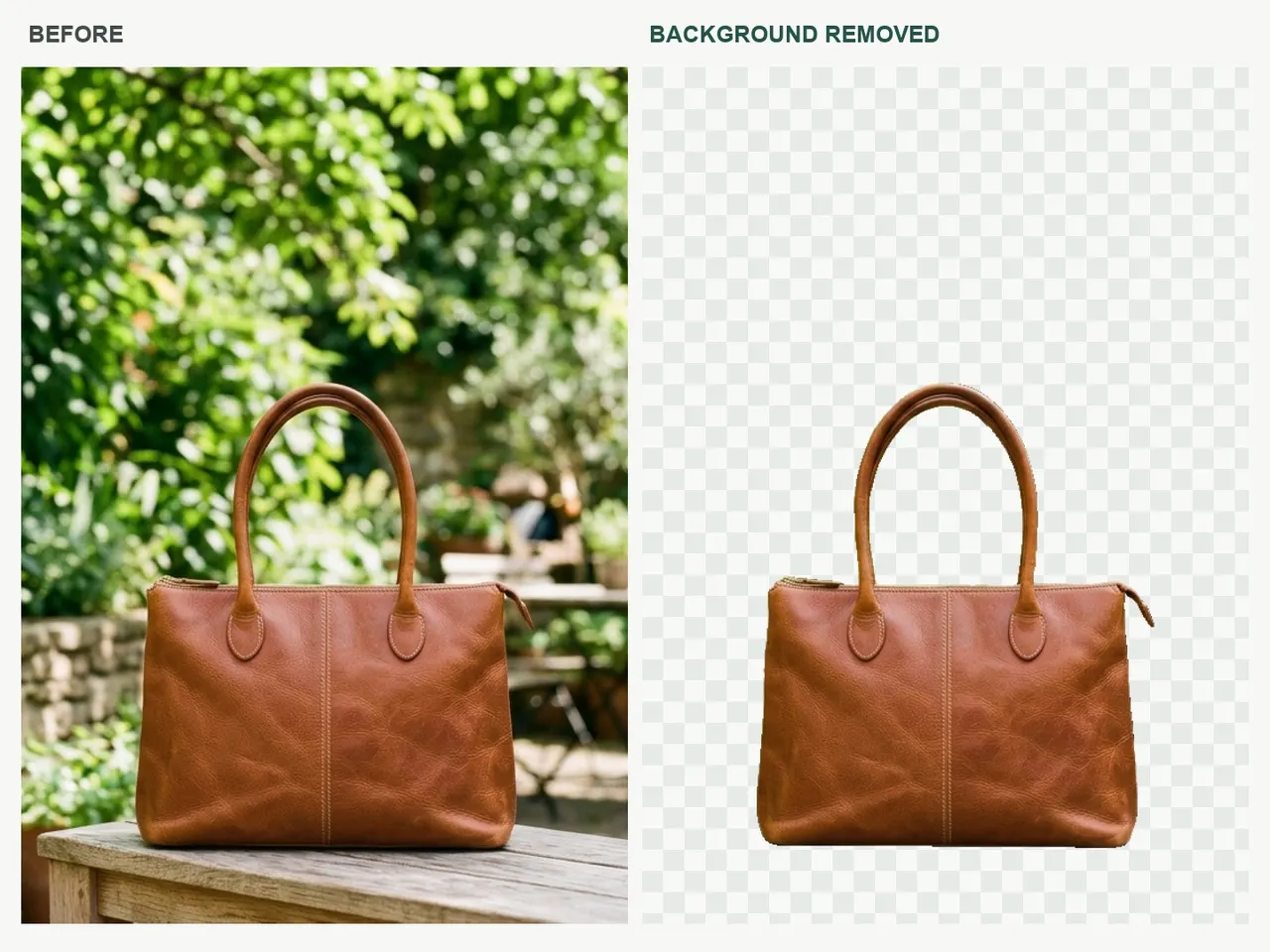 Accessories
Remove the background from my reference image. Preserve the exact subject, pose, colors, fine hair and openings. Do not redraw the subject or add new objects. Use a transparent background if the chosen model supports it; otherwise provide a clean plain background and inspect the edges.
Use This DirectionProductsRemove the background from my reference image. Preserve the exact subject, pose, colors, fine hair and openings. Do not redraw the subject or add new objects. Use a transparent background if the chosen model supports it; otherwise provide a clean plain background and inspect the edges.
Use This Direction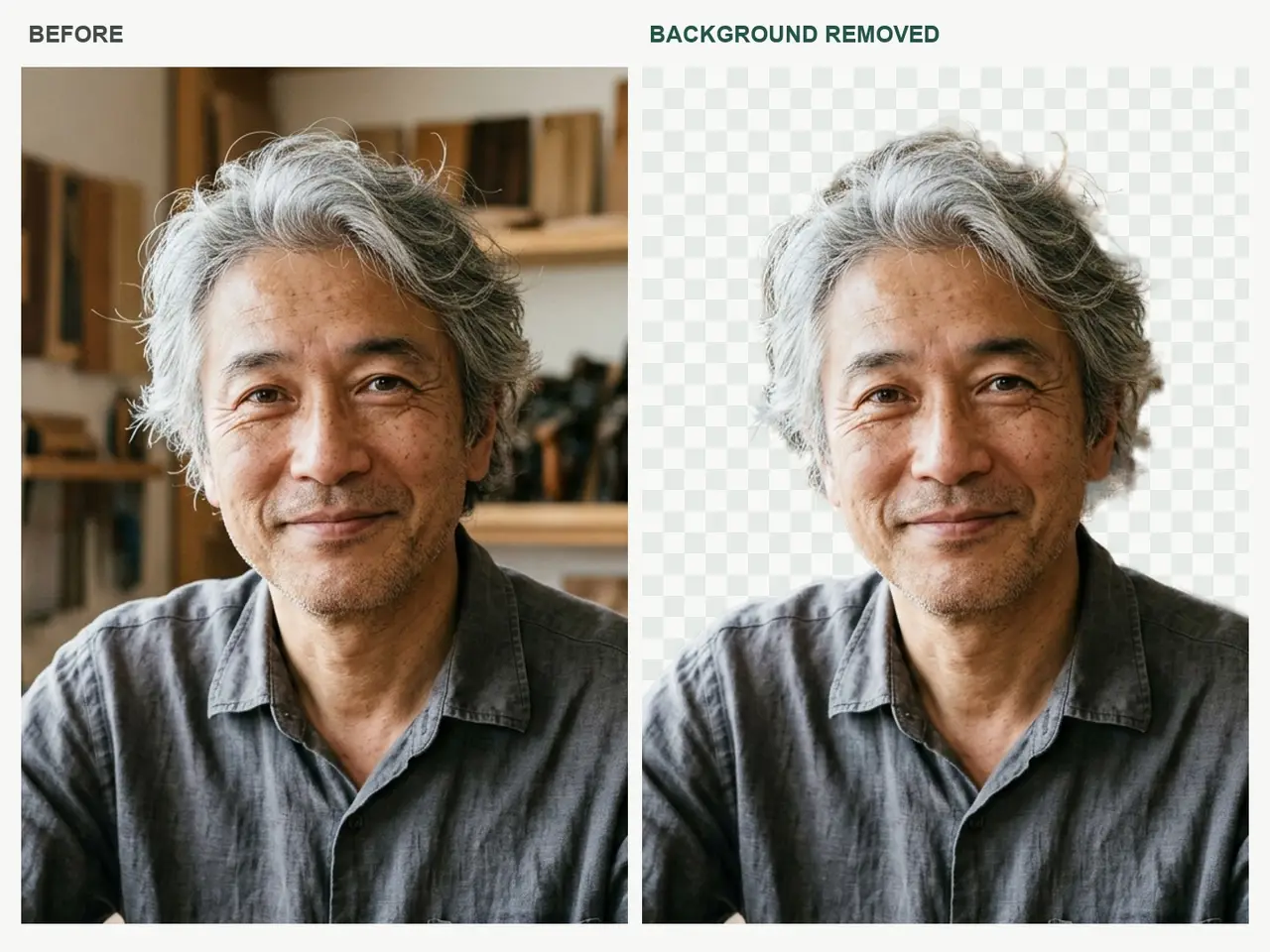 Portraits
Remove the background from my reference image. Preserve the exact subject, pose, colors, fine hair and openings. Do not redraw the subject or add new objects. Use a transparent background if the chosen model supports it; otherwise provide a clean plain background and inspect the edges.
Use This Direction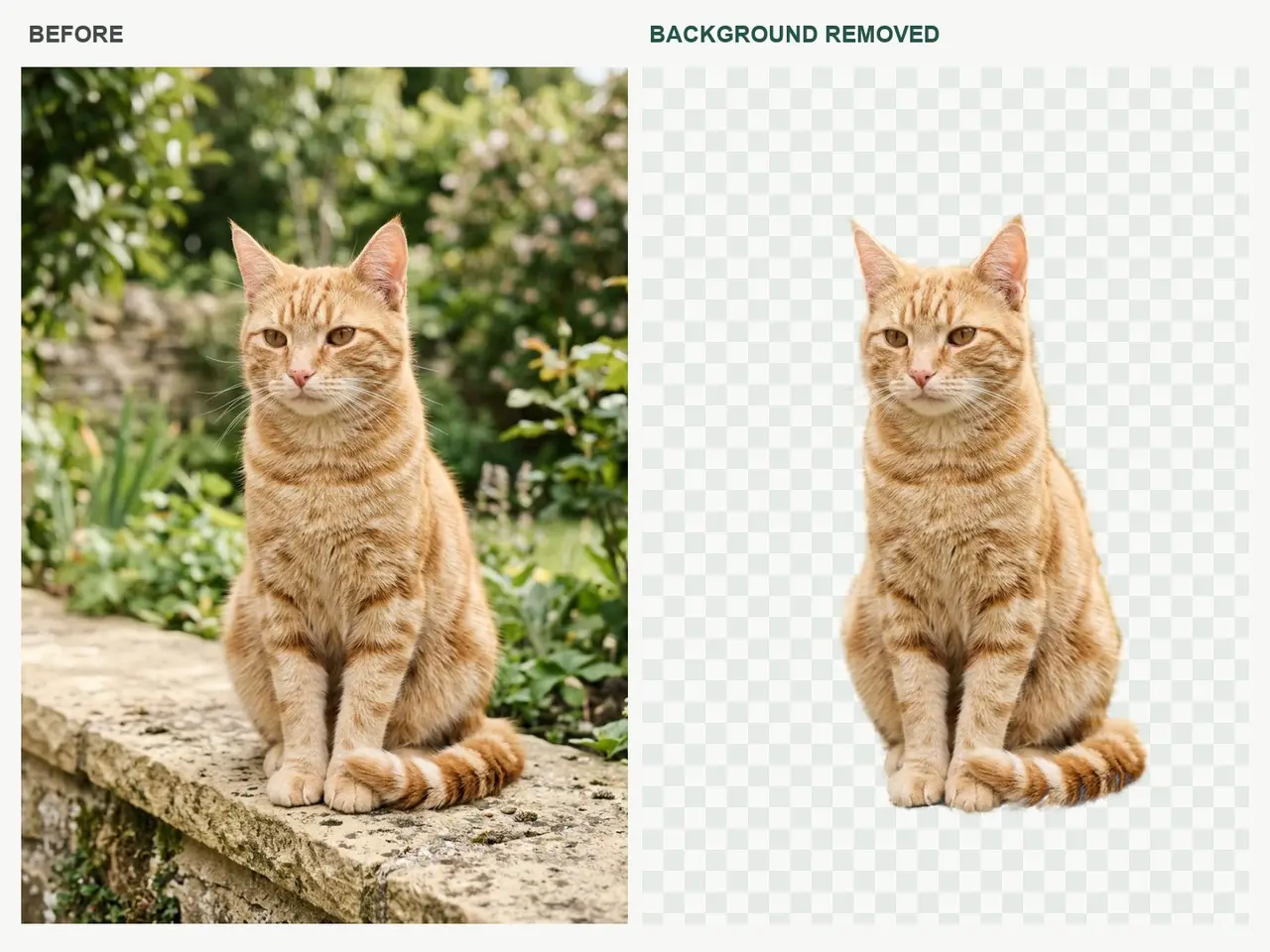 Pets
PetsRemove the background from my reference image. Preserve the exact subject, pose, colors, fine hair and openings. Do not redraw the subject or add new objects. Use a transparent background if the chosen model supports it; otherwise provide a clean plain background and inspect the edges.
Use This Direction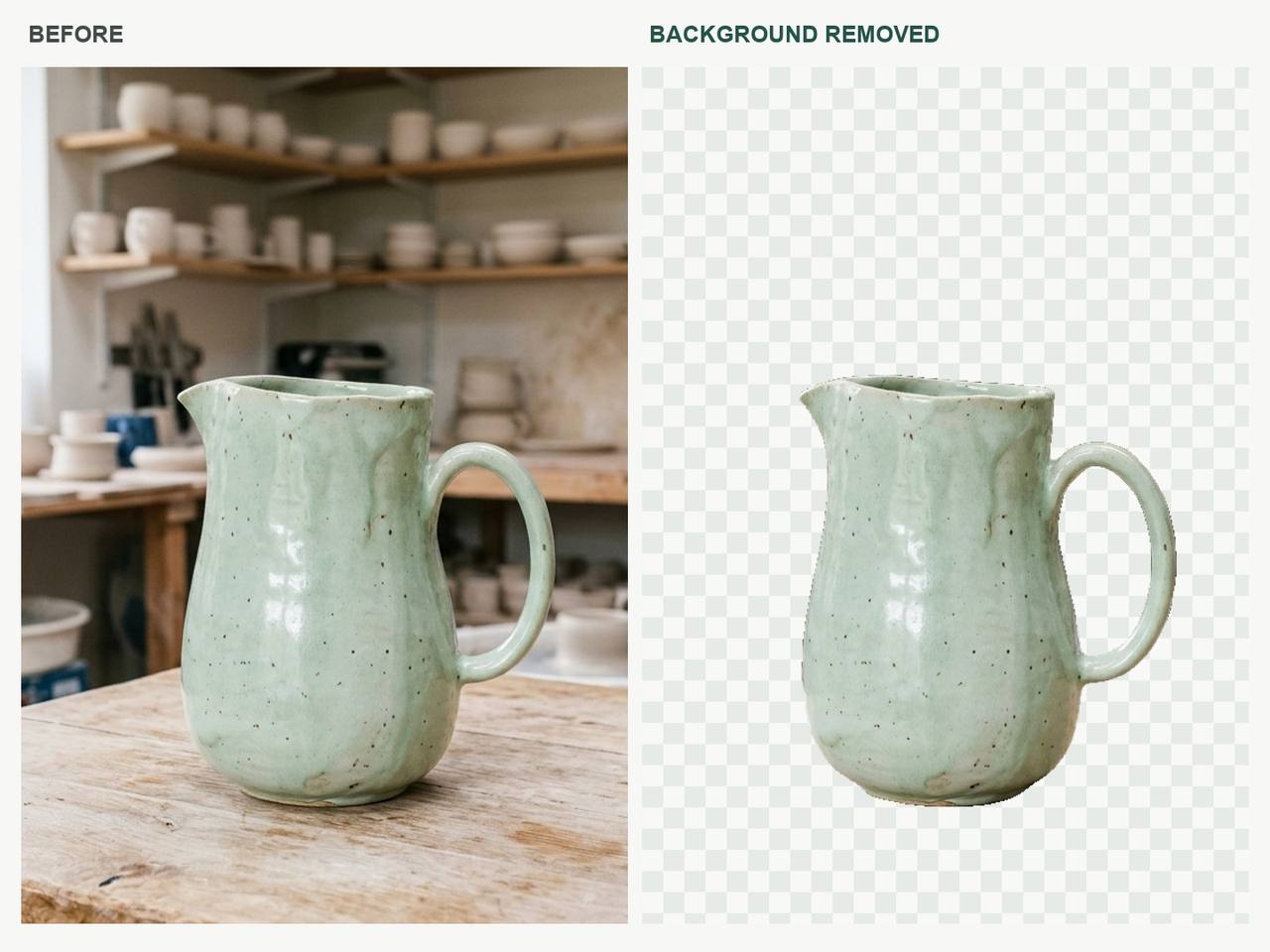 Products
Remove the background from my reference image. Preserve the exact subject, pose, colors, fine hair and openings. Do not redraw the subject or add new objects. Use a transparent background if the chosen model supports it; otherwise provide a clean plain background and inspect the edges.
Use This Direction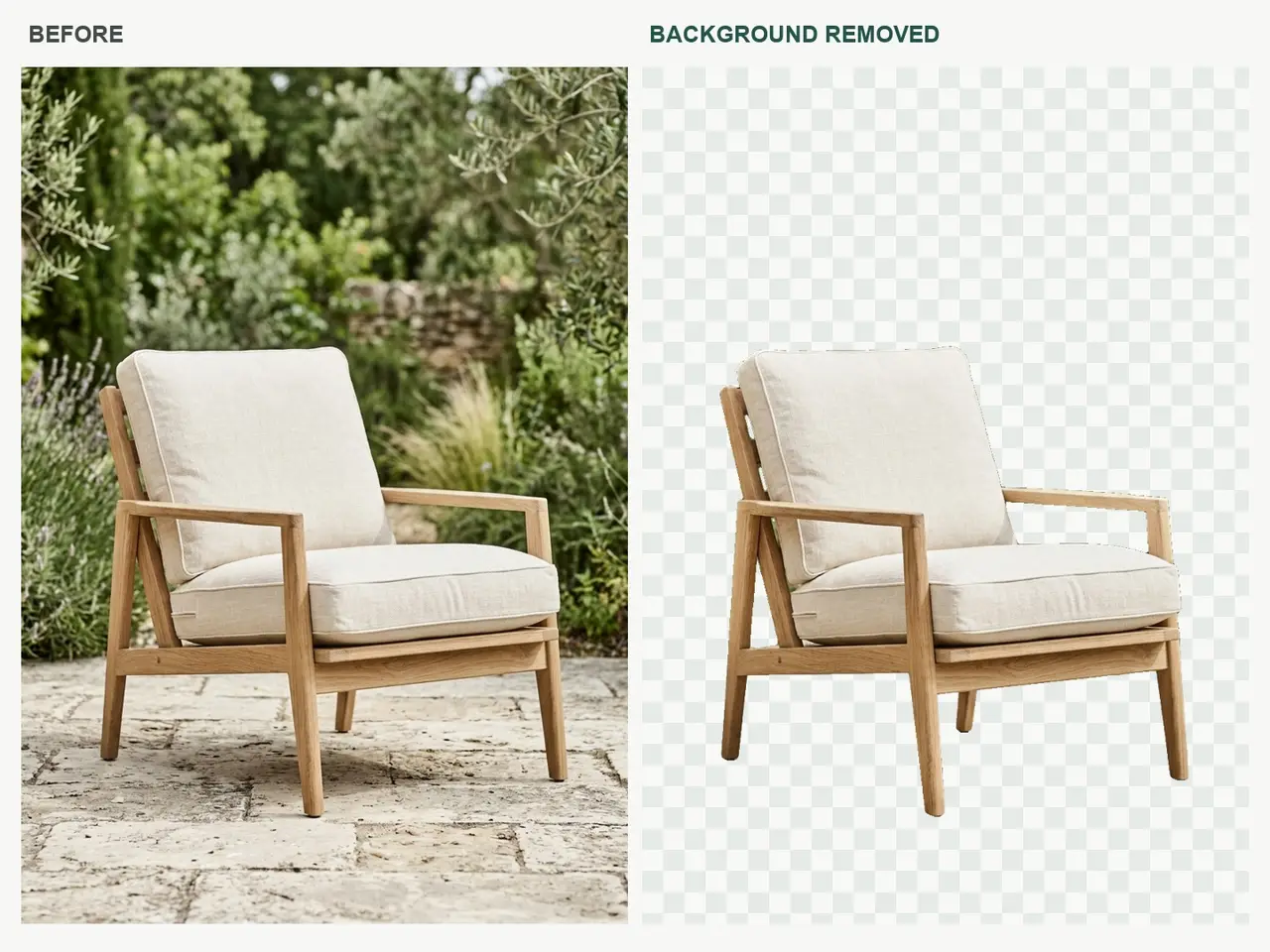 Products
Remove the background from my reference image. Preserve the exact subject, pose, colors, fine hair and openings. Do not redraw the subject or add new objects. Use a transparent background if the chosen model supports it; otherwise provide a clean plain background and inspect the edges.
Use This Direction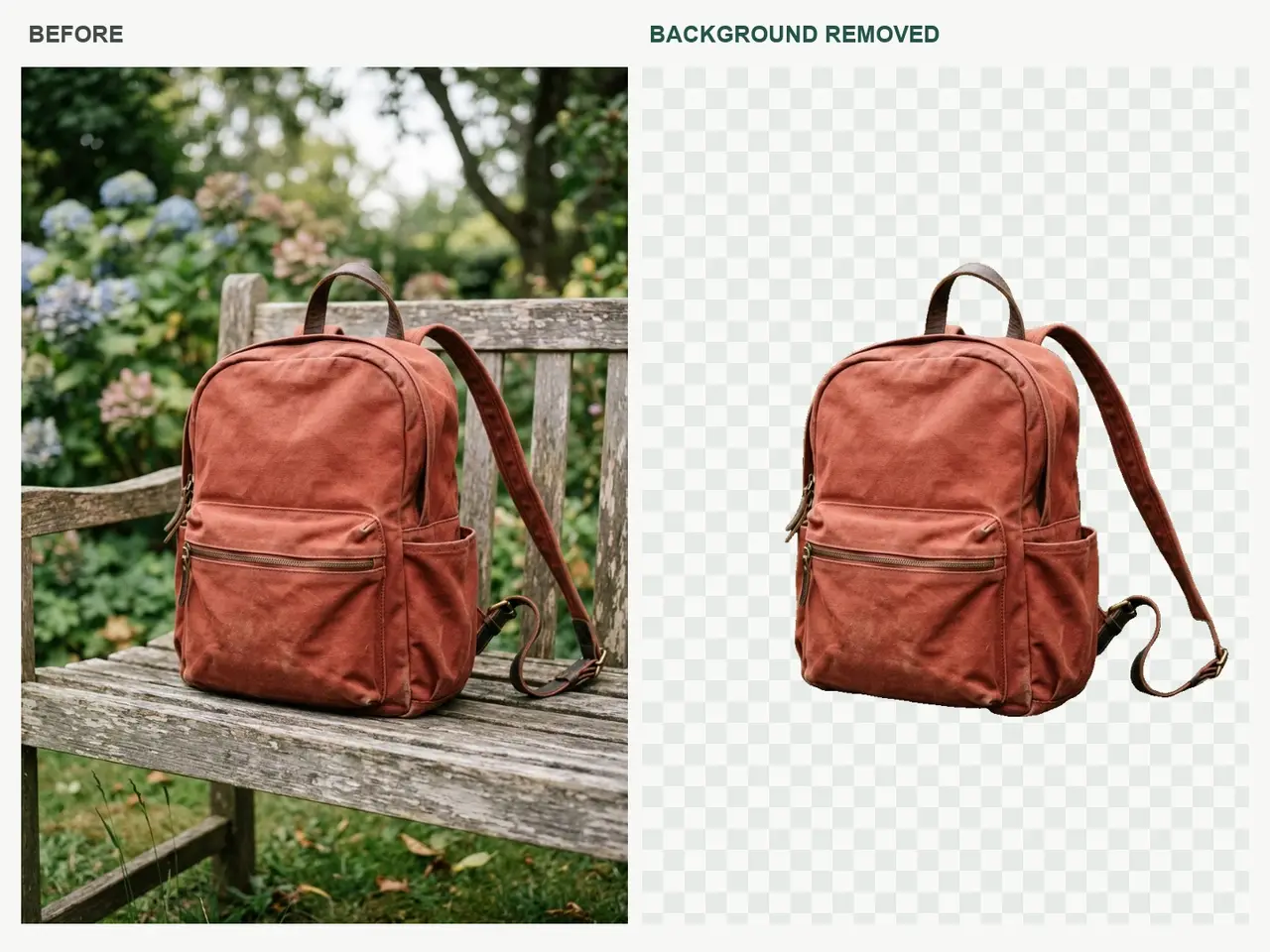 Accessories
Remove the background from my reference image. Preserve the exact subject, pose, colors, fine hair and openings. Do not redraw the subject or add new objects. Use a transparent background if the chosen model supports it; otherwise provide a clean plain background and inspect the edges.
Use This DirectionTell the model which object or person to keep, including small handles, hair and transparent parts that need attention.
Request a plain white setting, a soft studio backdrop or a natural environment that suits the product.
Try the same background instruction with the available image models, then inspect the subject for unwanted changes.
A focused brief makes each result easier to judge.
Use your photo with a reference-capable model. Name the subject to preserve and whether you want white, a studio backdrop or a new scene.
Choose an available model and aspect ratio. Keep the brief focused on the requested change, with clear style and lighting instructions.
Compare hair, fur, handles and reflections at full size. Check for a real alpha channel if your project needs a transparent cutout.
Fictional scenarios for review, not real customer testimonials or ratings.
Illustrative scenario: White product backdrop. Tell the model which object or person to keep, including small handles, hair and transparent parts that need attention.
Illustrative scenario: Simple portrait backdrop. Request a plain white setting, a soft studio backdrop or a natural environment that suits the product.
Illustrative scenario: Pet portrait cleanup. Try the same background instruction with the available image models, then inspect the subject for unwanted changes.
Transparent export has not been verified for this workspace. Use it for prompt-guided background edits; if you need a transparent cutout, check the downloaded file for a real alpha channel before using it.
Generative edits can alter edges, labels or facial details. Ask the model to preserve them and compare the result with your source at full size.
Start with a sharply focused subject that is clearly separated from its surroundings. Fine hair, glass, reflections and overlapping objects need closer review.
You can request a plain white scene and a natural contact shadow. Check that the result meets the image rules of the marketplace where you intend to use it.
Available trials and generation costs depend on your account and chosen model. Check the current generation screen before submitting.